

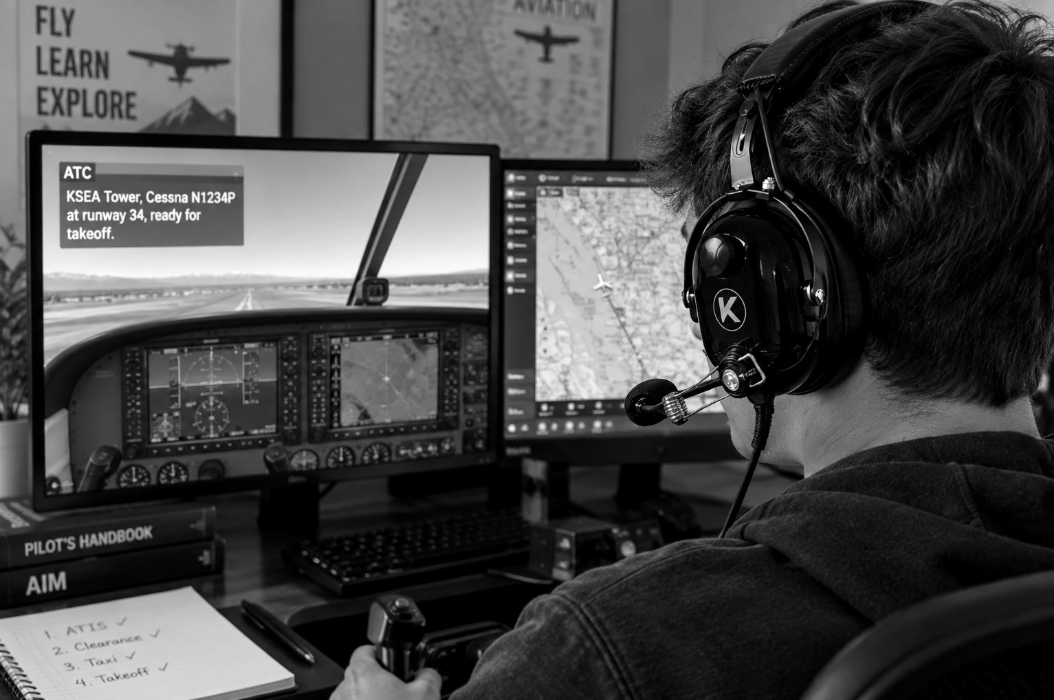
KORE Aviation - When student pilots practice procedures on home flight training software, visual cues and flight dynamics are only half the battle. Radio communications represent a massive hurdle during initial training. Utilizing your actual training gear during home practice changes everything. When you practice on your computer with an aviation headset for flight simulator training, you replicate the exact tactile experience of the aircraft.
In a Cessna 172 or Piper Archer, your headset sits snugly against your ears. The microphone boom positions the electret microphone element precisely at the corner of your mouth. When you map a keyboard key or a yoke button to act as your push to talk switch, wearing your real headset trains your hand to reach for the microphone or trigger while managing frequencies.
Furthermore, standard aviation headsets feature 24 dB of Passive Noise Reduction. While your home office lacks the 85 to 95 decibels of cockpit cruise noise found in a light single engine aircraft, wearing your headset blocks outside distractions and forces you to get comfortable with the acoustic profile of real aviation audio. Over 30,000 pilots trust quality passive noise reduction gear for flight training, and bridging that equipment gap between home and the flight line accelerates learning.
The Technical Challenge: Why GA Plugs Need Special Adapters
If you try to plug your training headset directly into your desktop computer or laptop, you will immediately run into a physical and electrical mismatch. Real General Aviation headsets utilize two distinct plugs. The microphone plug is a .206 inch PJ-068 jack, while the headphone plug is a larger .250 inch PJ-055 jack. Standard computer sound cards feature 3.5 millimeter auxiliary ports or USB ports. None of these physical computer ports accept aviation plugs without an intermediary.
Beyond the physical size difference, an electrical barrier exists. Aviation electret microphones require a specific bias voltage, typically between 8 and 12 volts of direct current, to power the microphone condenser element and transmit voice audio. Consumer computer microphone ports typically supply only 3 to 5 volts of bias power. Without an adapter that steps up this voltage and matches the impedance of aviation speakers, your computer will either fail to detect any microphone input or produce audio so quiet that air traffic control software cannot understand your readbacks.

Choosing the Right Adapter When Using an Aviation Headset for Flight Simulator Sessions
Connecting your gear requires hardware designed specifically to bridge high impedance aviation audio with low voltage computer sound cards. Several adapter categories exist on the market today, each offering distinct advantages for flight simulation enthusiasts.
The first category is a dual plug to USB sound card adapter. These units feature female PJ-055 and PJ-068 jacks on one end and a standard USB cable on the other. Internal circuitry draws 5 volts from the computer USB port and boosts it to supply the necessary microphone bias. These digital adapters bypass your computer built-in sound card entirely, processing audio through a dedicated analog to digital converter. This approach minimizes static interference and provides reliable plug and play compatibility across Windows and Mac operating systems.
Another option is a dual plug to 3.5 millimeter analog adapter with integrated battery power or USB power injection. These units combine the microphone and headphone signals into standard 3.5 millimeter plugs that connect directly to separate microphone and headphone jacks on your computer motherboard or a dedicated sound card. Because these analog adapters require active voltage injection to power the aviation mic, check user manuals to ensure they include battery compartments or external power leads.
When shopping for an aviation headset pc adapter, look for specific features. Ensure the unit explicitly states that it supports aviation microphone bias voltage. Independent volume controls on the adapter housing allow you to balance simulator engine sounds against radio chatter without diving into software menus. Finally, look for adapters featuring ground loop isolation circuits, which eliminate the high pitched whine or electrical hum caused by computer power supplies interfering with audio grounds. Using a proper flight sim headset adapter ensures your voice transmits cleanly across any network.
Step by Step Audio Configuration for Your Aviation Headset for Flight Simulator Use on Windows and Mac
Once your adapter and headset are physically connected to your computer, configuring your operating system ensures flawless audio routing. Microsoft Flight Simulator, X-Plane, and Prepar3D all rely on the same setup: the software relies on your operating system default sound devices.
On Windows, right click the speaker icon in your system tray and open sound settings. Under the output section, select your USB adapter or connected sound device as your default playback endpoint. Under the input section, select the corresponding microphone endpoint. Open the device properties for the microphone and adjust the input level gain slider. Set the gain so that your normal speaking voice peaks around 75 percent without clipping or distorting. Open your recording software or use the Windows voice recorder utility to record a 10 second test phrase, verifying that your voice sounds crisp and free of electrical hum.
On macOS, open system settings and navigate to the sound panel. Select your USB audio interface under the output tab, then select the same interface under the input tab. Adjust the input volume slider until the input level meter responds actively to your voice without hitting maximum red levels. Launch your flight simulator software, navigate to the audio settings menu, and manually assign the headset adapter as your primary communication device for both voice output and voice input.

Practicing Radio Procedures with Sim ATC and Network Add-Ons
With your hardware and operating system configured, your flight sim headset setup is ready for serious procedural practice. Traditional stock flight simulator air traffic control uses synthetic text to speech voices that respond only to basic menu selections. While useful for learning basic flight phases, serious student pilots benefit immensely from advanced simulator add-ons and online multiplayer networks.
Modern third party simulator extensions integrate realistic synthetic voice recognition, allowing you to speak natural language clearances, readbacks, and position reports directly into your microphone. The software parses your verbal transmission, confirms correct phraseology, and responds with realistic controller instructions. This environment forces you to develop proper radio timing and clear diction.
When you use pilot headset with computer configurations during these sessions, you build the exact cognitive habits required in a busy controlled airspace. For the ultimate preparation before your first solo flight, live network air traffic platforms connect home simulators to a shared virtual airspace staffed by human air traffic controllers. Communicating on these networks requires real world radio discipline, correct frequency changes, and precise altimeter settings.
Troubleshooting Your Aviation Headset for Flight Simulator Audio and Microphone Issues
Even with quality equipment, minor configuration snags can occur during initial setup. Understanding common troubleshooting steps saves hours of frustration.
If your computer registers no microphone audio at all, the root cause is almost always a lack of bias voltage. Ensure your USB adapter is drawing power or that fresh batteries are installed if you are using an unpowered analog interface. Check that the plugs are firmly seated into the female jacks. Aviation plugs require a firm push to click past the retaining detents.
Very quiet audio usually points to an impedance mismatch. Aviation headsets are engineered for high impedance audio systems found in aircraft avionics racks. Connecting them directly to standard computer sound cards without an impedance matching adapter results in whisper soft output. Using a dedicated ga headset usb adapter resolves this by stepping up signal levels appropriately.
If you hear audio in only one ear, check whether your headset is a mono or stereo model and verify your adapter settings. Plugging a mono aviation headset into a stereo source without a proper summing adapter can leave one ear cup completely silent. Finally, if you hear a persistent buzzing noise, your system is suffering from a ground loop. Adding a USB ground loop isolator between your computer and the adapter clears up electrical interference instantly.

Comparing Adapter Types for Your Flight Sim Headset Setup
To help you select the right hardware interface for your home simulator configuration, review the comparison table below.
| Adapter Type | What It Does | Mic Works? | Typical Price Range | Best For |
|---|---|---|---|---|
| GA Dual Plug to USB Sound Card | Converts dual aviation jacks to digital USB, supplies 5V to 10V bias power internally. | Yes | $35 to $60 | Plug and play setup on modern PCs and Macs without separate audio ports. |
| GA Dual Plug to Dual 3.5mm Analog | Merges dual GA plugs into standard 3.5mm mic and headphone pins with external power. | Yes | $25 to $45 | Computers featuring dedicated separate microphone and headphone audio jacks. |
| Powered USB Audio Interface | Advanced external sound module with separate volume controls and zero-latency sidetone. | Yes | $45 to $75 | Pilots wanting advanced audio mixing and physical volume knobs on the desk. |
Choosing the Best KORE Headset for Your Sim and Cockpit
When selecting an aviation headset for flight simulator practice and actual aircraft use, durability and acoustic performance matter. KORE Aviation offers purpose built solutions trusted by over 30,000 pilots and over 50 flight school partners.
If you want a dedicated headset that lives permanently on your flight simulation rig, the KORE P1 is an affordable option priced at $124.95. It features rugged construction, 24 dB of Passive Noise Reduction, comfortable silicone gel ear seals, and a reliable mono design that handles daily simulator sessions with ease. For pilots seeking maximum value, the KORE P1 with Headset Bag Bundle available for $139.95 includes a durable storage case to keep your simulator gear protected.
If you want one single headset that transitions seamlessly from your home flight simulator to your training aircraft, the KORE KA-1 General Aviation Headset is the ideal choice at $224.95. It features switchable mono and stereo capability, a 3.5mm auxiliary input for connecting audio sources, ultra plush silicone gel ear seals, and a comprehensive 5 year factory warranty. You can practice radio calls at home during the week and wear the exact same comfortable headset in the training aircraft on the weekend.

Shop the KORE P1 Headset Shop the KORE KA-1 Headset
Frequently Asked Questions
Can I plug my real airplane headset directly into my computer?
No. Standard aviation headsets use large dual GA plugs that do not fit computer audio ports. Furthermore, aviation electret microphones require 8 to 12 volts of bias voltage, while computer sound cards supply only 3 to 5 volts. You must use a specialized adapter to bridge this electrical and physical gap.
What adapter do I need to connect a GA headset to a USB port?
You need a GA dual plug to USB sound card adapter. This device accepts the PJ-055 headphone plug and PJ-068 microphone plug on one end, converts the signals, and connects to your computer via a standard USB cable while supplying the necessary microphone power.
Why is my aviation headset microphone not working on my flight simulator?
The most common reason for microphone failure is a lack of bias voltage. If your adapter is unpowered or requires batteries that are depleted, the microphone element will not activate. Ensure your USB adapter is fully plugged in and recognized by your operating system sound input settings.
Can I use my flight sim headset in a real aircraft?
Yes, provided you choose a model with proper aviation certification and durable construction. Headsets like the KORE KA-1 are built specifically for aircraft cockpits with 24 dB of Passive Noise Reduction and dual GA plugs, making them equally effective for home simulator practice and real flight training.
How do I stop the buzzing sound in my headset when connected to a computer?
Electrical buzzing or humming is usually caused by a ground loop between your computer power supply and the audio adapter. Adding a USB ground loop isolator between your computer and your headset adapter will eliminate electrical interference and restore crystal clear audio.
Bottom Line
Using an aviation headset for flight simulator training can help student pilots become more familiar with their equipment while practicing radio calls, ATC procedures, and cockpit communication at home.
The key is choosing the right adapter. Most standard GA headsets require a compatible USB or powered audio adapter to connect their dual aviation plugs to a computer and support the microphone properly. Once connected, check your audio settings, test the microphone, and configure your simulator's communication controls.
For pilots who want to use the same headset at home and in the aircraft, the KORE KA-1 offers 24 dB passive noise reduction, gel ear seals, and dual GA compatibility. The more affordable KORE P1 is another option for basic simulator practice and flight training.
A home simulator cannot replace real flight instruction, but practicing with familiar equipment can make radio procedures feel more natural when you return to the cockpit.


